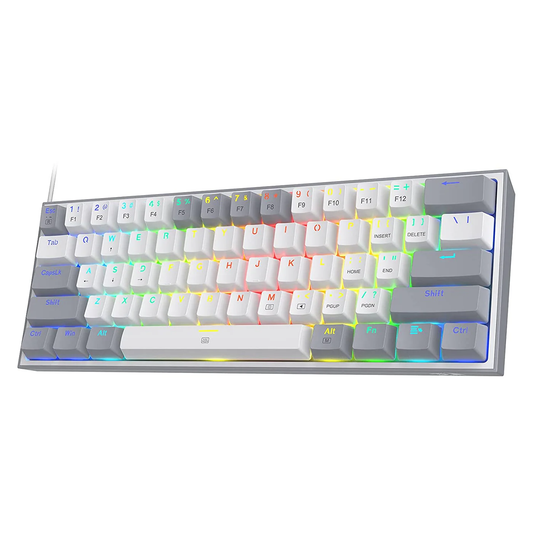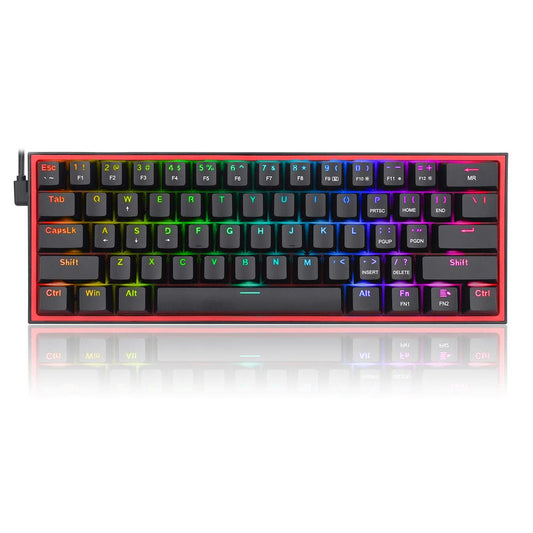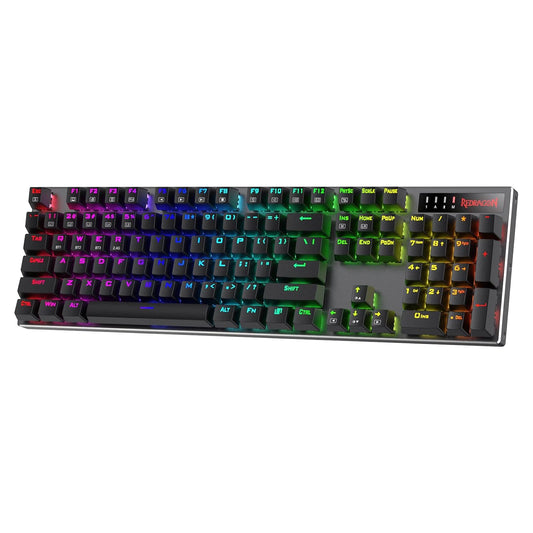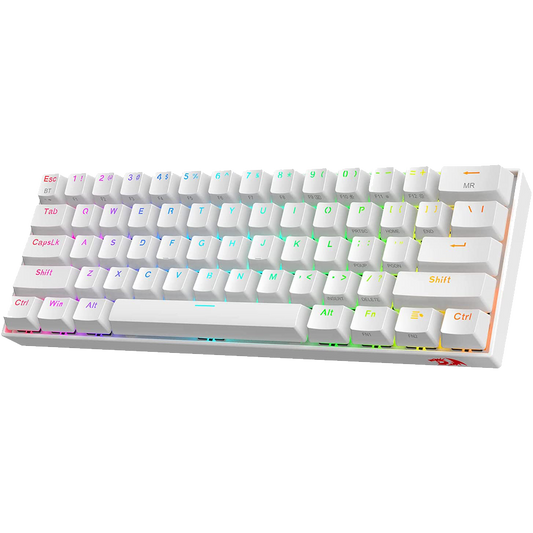

The ATK V75K supports three connection modes and is configured through V HUB, ATK's all-in-one keyboard management software. This guide covers how to download and install V HUB, how to set up each wireless mode, how to configure key remapping and RGB, and how to resolve the most common issues that come up after the initial setup.
This guide applies to both the ATK V75K and ATK V75X, as both keyboards use V HUB and the same connectivity hardware. Where the two models differ, the V75K-specific notes are called out.

Connectivity Modes: Quick Reference
| Mode | How to Activate | Best For | Latency |
|---|---|---|---|
| USB-C Wired | Plug in the USB-C cable | Maximum reliability, charging while typing | Near-zero (<1ms) |
| 2.4G Wireless | Insert dongle, press Fn + [2.4G key] | Gaming, low-latency daily use | 1ms (SMART SPEED X) |
| Bluetooth 5.0 | Hold Fn + [BT key] to pair, short press to connect | Multi-device, office use, Mac/iPad | ~7-10ms typical |
Installing V HUB Software on Windows
V HUB is available for Windows. The software manages all customization for ATK keyboards including the V75K and V75X. The installation process takes under five minutes and does not require a driver separate from V HUB.
Download and Installation Steps
- Go to the ATK Gear website and navigate to the Downloads or Support section.
- Download the V HUB installer for your Windows version (Windows 10 or Windows 11).
- Run the installer. Accept the default installation path unless you have a specific reason to change it.
- Connect the V75K via USB-C cable before opening V HUB for the first time.
- Open V HUB. The software should detect the keyboard automatically within a few seconds.
- If the keyboard is not detected, disconnect and reconnect the USB-C cable, then restart V HUB.
macOS and Linux
V HUB is confirmed for Windows only. The ATK V75K functions as a standard HID device on macOS and Linux, meaning basic key input works without drivers. However, key remapping, macro recording, and RGB customization require V HUB and therefore require a Windows machine. If you use macOS as your primary system, you can configure the keyboard from a Windows machine and the settings are stored on the keyboard's onboard memory.
Onboard memory means your key mappings and RGB settings stay on the keyboard even after you disconnect it from the Windows machine. You do not need to keep V HUB open during normal use.
Key Mapping and Macros in V HUB
V HUB displays a visual layout of all 80 keys on the V75K. Clicking any key in the software opens a remapping menu. You can assign any key to a different character, function key, media control, or custom macro.
Setting Up Key Remaps
To remap a key, click the key in the V HUB layout, select the target function from the category list, and click Apply. Changes take effect immediately over USB. If you are in wireless mode, connect via USB-C to sync the new layout to the keyboard's onboard memory, then switch back to wireless.
Creating and Assigning Macros
The macro editor in V HUB lets you record a sequence of keystrokes, mouse inputs, and delays, then assign that sequence to any key. To create a macro: open the Macro section in V HUB, click New Macro, start recording, perform the key sequence, stop recording, and then assign the macro to a key in the layout editor. Macro loops and delay adjustments are available in the editor for automation tasks that require precise timing.
RGB Lighting Customization in V HUB
The V75K has per-key ARGB controlled through an independent lighting chip. V HUB provides a full lighting editor with three main sections: preset effects, per-key color assignment, and animation settings.
To set a preset effect, open the Lighting section in V HUB and select from the available effects list. Common presets include Breathing, Wave, Ripple, and Static. You can adjust speed, direction, and color palette for each effect. To set individual key colors, switch to the Per-Key editor, click each key, and assign an RGB value or pick from the color wheel.
RGB lighting is the largest contributor to battery drain in wireless mode. If battery life is a priority, set the brightness to 30-50% or select a static low-brightness color rather than a moving effect. Turning RGB off entirely maximizes battery runtime.
The V75K stores up to three custom lighting profiles in onboard memory. Save your best profile before disconnecting from V HUB so it loads automatically without reconnecting to the software.
Setting Up Wireless Connectivity
2.4G Wireless Mode: Setup and Use
The 2.4G mode uses the included USB-A dongle. Plug the dongle into a USB-A port on your computer. The dongle and keyboard are pre-paired from the factory. You do not need to run a separate pairing process. Activate 2.4G mode on the keyboard using the physical shortcut key. The SMART SPEED X chip processes inputs at 1ms, which is equivalent to a 1000Hz polling rate on wired keyboards. This mode is recommended for gaming.
Keep the dongle within line-of-sight of the keyboard where possible. Physical obstructions between the dongle and keyboard, particularly metal surfaces, can reduce the effective wireless range. For desk setups where the USB port is at the back of a tower PC, a USB extension cable that brings the dongle closer to the keyboard will improve signal consistency.
Bluetooth 5.0 Mode: Pairing and Multi-Device Use
Bluetooth mode supports pairing to multiple devices. The V75K can store pairing information for multiple Bluetooth devices and switch between them using the dedicated shortcut keys. This is useful if you work across a laptop and a desktop, or want to use the keyboard with an iPad during travel.
To pair a new Bluetooth device: hold the Bluetooth shortcut key for the device slot you want to assign (typically 3-5 seconds) until the pairing indicator activates, then complete the pairing from your device's Bluetooth settings. To switch between paired devices, press the shortcut key for that device slot. Switching takes 1-3 seconds in typical conditions.
USB-C Wired Mode
USB-C wired mode works on any operating system without drivers and charges the keyboard simultaneously. The keyboard activates wired mode automatically when the cable is connected and the computer is powered. To return to wireless mode, disconnect the cable and activate the wireless mode shortcut. The keyboard does not require a restart when switching modes.
Managing Battery Life on the ATK V75K
The V75K's 8000mAh battery is its largest specification advantage over the V75X (4000mAh). To maximize time between charges, the three most effective settings are: reducing RGB brightness, using Bluetooth instead of 2.4G during low-latency-tolerance tasks, and enabling the auto-sleep function in V HUB.
| Setting | Estimated Battery Impact | Recommendation |
|---|---|---|
| RGB off | Largest saving; roughly doubles runtime vs full RGB | Use for extended sessions without power access |
| RGB at 30% brightness | Moderate saving; good balance of aesthetics and battery | Standard daily office use |
| RGB full brightness | Highest drain; reduces runtime significantly | Short sessions at desk with charger nearby |
| 2.4G wireless | Slightly higher drain than Bluetooth | Use for gaming; switch to BT for office work |
| Auto-sleep after 5 min idle | Saves battery significantly during breaks | Enable in V HUB power settings |
Charging is via the included USB-C cable. The keyboard continues to function while charging. A standard 5V/2A charger will fully charge the 8000mAh battery in approximately 4-6 hours.
Troubleshooting Common Issues
Keyboard Not Detected by V HUB
If V HUB opens but does not show the V75K: confirm the keyboard is connected via USB-C, not in wireless mode. V HUB requires a wired connection for initial detection. Try a different USB port, particularly a USB-A to USB-C port directly on the motherboard rather than a front panel or hub. Restart V HUB after reconnecting. If the keyboard still does not appear, reinstall V HUB with the antivirus temporarily disabled to rule out a false positive blocking the driver components.
2.4G Wireless Connection Drops or Stutters
Interference from other 2.4G devices is the most common cause of wireless drops. Other wireless keyboards, mice, routers on the 2.4G band, and USB 3.0 devices near the dongle can all cause this. Move the dongle away from USB 3.0 ports and router antennas. A USB 2.0 extension cable placing the dongle on the desk surface near the keyboard resolves most interference cases. If drops persist, switch to a less congested Wi-Fi channel on your router.
Bluetooth Pairing Fails or Disconnects Frequently
If Bluetooth pairing fails, delete the keyboard from your device's Bluetooth device list and re-initiate the pairing from scratch. Make sure the keyboard is in active pairing mode and within 1 metre of the device during initial pairing. Frequent disconnects on Bluetooth are often caused by Windows power management turning off the Bluetooth adapter to save battery. In Device Manager, open the Bluetooth adapter properties, go to Power Management, and disable the option that allows Windows to turn off the device to save power.
RGB Not Responding or Wrong Colors After Wireless Switch
Lighting settings stored in V HUB need to be synced to the keyboard's onboard memory via USB-C before they display correctly in wireless mode. Connect the keyboard via USB-C, open V HUB, and click the Sync or Apply to Device option. Then switch back to wireless. The stored lighting profile will load from onboard memory and display correctly without V HUB running.
Keys Registered as Wrong Characters on Non-QWERTY Layouts
V HUB key remapping operates at the hardware level. If your operating system is set to a language or regional layout that differs from QWERTY (such as Hindi Devanagari input), you may see a mismatch between the key labels and input. Resolve this by either setting the OS input method to English QWERTY, or by remapping the keys in V HUB to match your preferred layout.
Frequently Asked Questions
Does the ATK V75K work on Mac without V HUB?
Yes, the keyboard functions as a standard HID input device on macOS. All keys work without drivers. V HUB features (remapping, macros, RGB customization) require a Windows machine to configure, but the saved settings remain on the keyboard and work on any platform after configuration.
How do I reset the ATK V75K to factory settings?
A factory reset clears all key remaps, macros, and custom RGB profiles stored in onboard memory. The reset key combination is documented in the V HUB software under Settings, and also in the included user manual. Perform a factory reset only if troubleshooting a configuration issue, as it cannot be undone without reconfiguring from V HUB.
Can I use the ATK V75K with a gaming console?
The V75K works via USB-C on any device that accepts standard USB HID keyboard input, which includes PS5 and Xbox via the USB port. Key remapping from V HUB will carry over to console use. Wireless modes (2.4G, Bluetooth) on consoles depend on whether the console supports third-party wireless keyboards, which varies by console and firmware version.
Is V HUB available in Hindi or other Indian languages?
V HUB is available in English and other international languages as of the current version. Hindi language interface support is not confirmed. The keyboard itself can output any character supported by the active OS input method regardless of the V HUB language setting.
How many profiles can I save on the ATK V75K?
The V75K supports onboard memory profiles for key mappings and lighting. The exact number of profiles is documented in V HUB under the Profile section. Typically, ATK keyboards support 3-5 onboard profiles. Switching between profiles can be done through V HUB or using physical key shortcuts.
For more, see our our ATK V75K review.