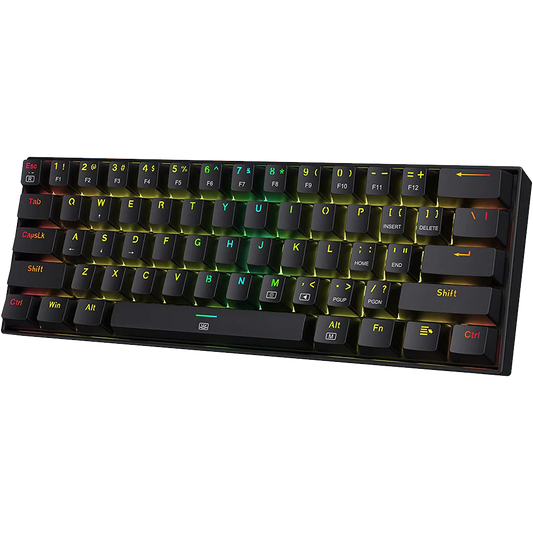

A personal mechanical keyboard is dear to all and that's why you should know how to clean your keyboard. Whether you are a gamer, coder, typist or just a tech enthusiast, most users forget that it’s also one of the dirtiest objects they touch daily.
Why to Clean Your Mechanical Keyboard
Research by the University of Arizona identified that keyboards are often breeding grounds for E. coli and Staphylococcus aureus, largely due to skin cells, food particles, and sweat.

Keeping it clean isn't just about aesthetics; it’s about making sure your hardware actually lasts.
A study by CBT Nuggets found that the average office keyboard can contain up to 20,000 times more bacteria than a toilet seat.
Here is a practical guide on when and how to clean your mechanical keyboard.

When Should You Clean Your Mechanical Keyboard?
It’s easy to ignore a little bit of dust, but dirt builds up in stages. Here is how to identify when it’s time for maintenance.
Identifying the Dirt
Stage 1: Surface Dust
Visible particles on the keycaps. This is mostly aesthetic but can lead to deeper issues if ignored.
Stage 2: Debris Buildup
Hair, crumbs, and lint trapped between the keys. You might see this more clearly when looking at the keyboard from a side angle.
Stage 3: Grime & Oils
Keycaps feel "greasy" or shiny. This is caused by skin oils and sweat reacting with the plastic.
Stage 4: Performance Issues
Sticky keys or keys that don't register properly. This means the dirt has reached the switches under the keycaps or the plate.

Recommended Cleaning Frequency
Light Cleaning
Once a week. A quick wipe-down prevents oil buildup.
Deep Cleaning
Every 3 to 4 months, depending on your environment (shorter if you eat at your desk or have pets).
How to Clean Your Keyboard (Deep Clean Without a Kit)
You don’t need an expensive cleaning kit to do a professional job. You can find everything you need in your kitchen or bathroom. Follow these steps to clean your mechanical keyboard safely.
Step 1: Document Your Layout
Before you touch anything, take a photo of your keyboard. You will need this as a reference when putting the keys back.
Step 2: Unplug and Disassemble
Unplug the keyboard. If you don't have a keycap puller, you can use a flat-head screwdriver or even a sturdy paperclip bent into a U-shape. Gently pry the keycaps off.
Note: Be careful with larger keys like the Spacebar or Shift, as they may have stabilizer wires.
Step 3: Soak the Keycaps
Fill a bowl with warm water and a few drops of mild dish soap. Let the keycaps soak for 30–60 minutes. This breaks down the oils and skin cells. A good keyboard with double-injection molded PBT keycaps does not loose color or smudge in this process.

Step 4: Clean the Board
While the caps soak, turn the keyboard upside down and give it a firm shake to remove loose debris. Use a dry toothbrush or a makeup brush to sweep out the dust from the plate. For stubborn spots, use a cotton swab lightly dampened with water (or isopropyl alcohol if you have it).
Step 5: Dry Everything Thoroughly
This is the most important step. Rinse the keycaps and lay them out on a towel with the stems facing down. Let them air dry until all the moisture is gone. Any moisture trapped inside the keycap stem can damage your switches.
Step 6: Reassemble
Use your reference photo to pop the keys back into place.

Step 7: Testing
Once everything is back together, plug the keyboard in and use a site like Keyboard Checker to ensure every key registers correctly.
Common Mistakes to Avoid

1. Using a Hairdryer
High heat can warp plastic keycaps or damage the delicate components inside the switches.
2. Excessive Water
Never pour water directly onto the keyboard base. Only use damp swabs for the plate.
3. Forcing Keycaps
If a keycap isn't coming off, don't yank it. Check if it has a stabilizer clip.
Tips for a Cleaner Keyboard

- Wash your hands: It sounds simple, but washing your hands before a long gaming or work session significantly reduces oil buildup.
- Avoid eating at the desk: Crumbs are the main reason for "sticky" keys.
- Use a dust cover: When you aren't using your PC, a simple microfiber cloth or plastic cover can keep the dust out.
If you are planning your next board, we have also compared Hall effect keyboards in India.
Send Us A Picture
Is your keyboard looking brand new again? We’d love to see the transformation! Send us a "Before & After" pictures of your keyboard it will make our day. Post it publicly on Reddit or just send it to us via Instagram DM, Discord or E-mail. We might even feature the most satisfying clean-ups in our next community highlight!