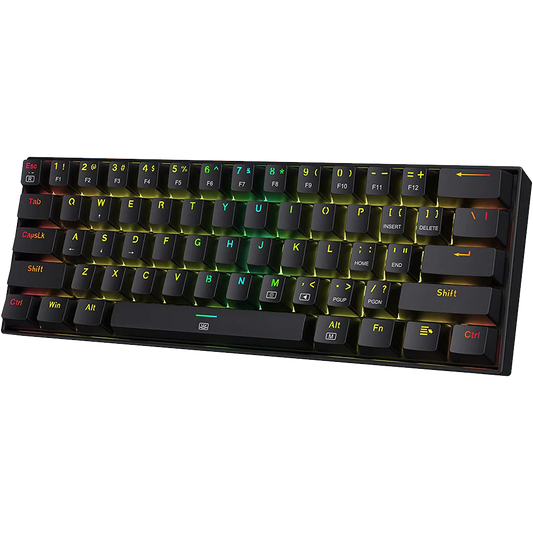

The Aula F75 has quickly become a favorite mechanical keyboard for users. It offers a "thocky" sound, long battery life and a great typing feel at a low price. However, if you want to use it wirelessly, you need to understand how the battery and charging work.
This guide will break down:
- Aula F75 battery specifications
- How to charge it correctly, and
- Tips for better battery life

Aula F75 Battery Specs
The Aula F75 comes with a 4000mAh battery. This is a large capacity for a 75% mechanical keyboard. Most budget keyboards only offer 2000mAh or 3000mAh, so the F75 has a clear advantage here.
| Feature | Specification |
| Battery Capacity | 4000mAh |
| Battery Type | Rechargeable Lithium-Ion |
| Charging Port | USB Type-C |
| Charging Voltage | DC 5V (700mA to 1350mA) |
How Long Does the Battery Last?
The battery life of the mechanical keyboard depends almost entirely on your RGB lighting settings.
- With RGB On: If you use the default lighting effects, expect the battery to last between 17.5 and 30.5 hours. If you use high-brightness or "Music Sync" modes, it will drain faster.
- With RGB Off: If you turn the lights off, the keyboard can last up to 266.5 hours. For a typical office worker, this means you might only need to charge it once every 2 to 3 weeks.
Connection Mode Matters:
Using the 2.4GHz wireless dongle uses more power because it has a faster 1000Hz polling rate. Bluetooth 5.0 is more energy-efficient and is better for long-term office work. Read more about Aula F75 Connectivity Issues.
Aula F75 Charging Time & Indicators
To keep your battery healthy, follow these charging rules:
- Use a PC USB Port: The best way to charge is by plugging the USB-C cable into your computer.
- Avoid Fast Chargers: Do not use high-voltage phone fast chargers. These can provide too much power and damage the keyboard's internal controller or the battery itself.
- Charging Time: From 0% to 100%, it takes about 4 to 6 hours to charge depending on the power source.
Charging Indicators
The keyboard has a small LED indicator, usually near the ESC key.
- Steady Light: The keyboard is charging.
- Light Off: The battery is fully charged.
- Flashing Red/White: This is a low-battery warning. It usually starts when you hit 30% power.
Tip: If the charging light flashes and distracts you, press FN + Left Shift. It changes or turns off the indicator light.
How to Check Your Battery Level
You don't have to guess how much power you have left. The Aula F75 has a built-in shortcut:
The FN + B Shortcut
Hold down FN + B. The number row (1 to 0) will light up in green to show your battery percentage.
- Keys 1–0 light up: 100% battery.
- Keys 1–5 light up: 50% battery.
- Keys 1–3 light up: 30% (Time to charge!).
You can also check the battery level in the Aula Driver Software, but this usually only works in Wired. The software often fails to show the correct level over Bluetooth. Read more about Aula F75 Software here.
Tips for Better Battery Life
- Set Sleep Mode: Use the Aula software to set a short sleep timer. Having the RGB lights turn off after 1 or 2 minutes of inactivity saves a lot of power.
- Lower Brightness: You don't need the RGB at 100%. Dropping it to 50% can add hours of use.
- Avoid "Vampire" Charging: Don't leave the keyboard plugged in 24/7. It is better for the battery's health to let it drain to 20% and then charge it back up.
The Aula F75 is a powerhouse with its 4000mAh battery. Just manage your RGB lighting and avoid using fast chargers. You will get one of the most reliable wireless experiences in its price range.
The Aula F75 provides one of the greatest typing experiences in given price range. However, some customers find the switch specifications confusing. Check out our detailed Aula F75 Switch Comparison guide here.

Hope this was helpful!!
This Aula F75 Battery Guide should solve almost all of the common problems. If specific technical errors persist then reach out to Vrkaa support team. You can reach out using any social media platforms or directly via emails.
Quick Links: Instagram, Discord
E-mail: admindesk@vrkaa.com